
getting-started
How to Install the Mervadon NotebookLM Chrome Extension | Mervadon
Install Mervadon from the Chrome Web Store, open the local Workspace, and understand the first permission prompt before capturing research.
Result
After these steps, Mervadon is available in Chrome and its Workspace can receive your first local source record.
Before you start
Use a supported Chrome browser and install the extension only from the official Chrome Web Store listing. Mervadon is an independent product and is not affiliated with or endorsed by Google or NotebookLM.
Step 1: Install the extension
Open the Mervadon Chrome Web Store listing and select Add to Chrome. Review the permissions shown by Chrome before confirming.
Step 2: Open Workspace
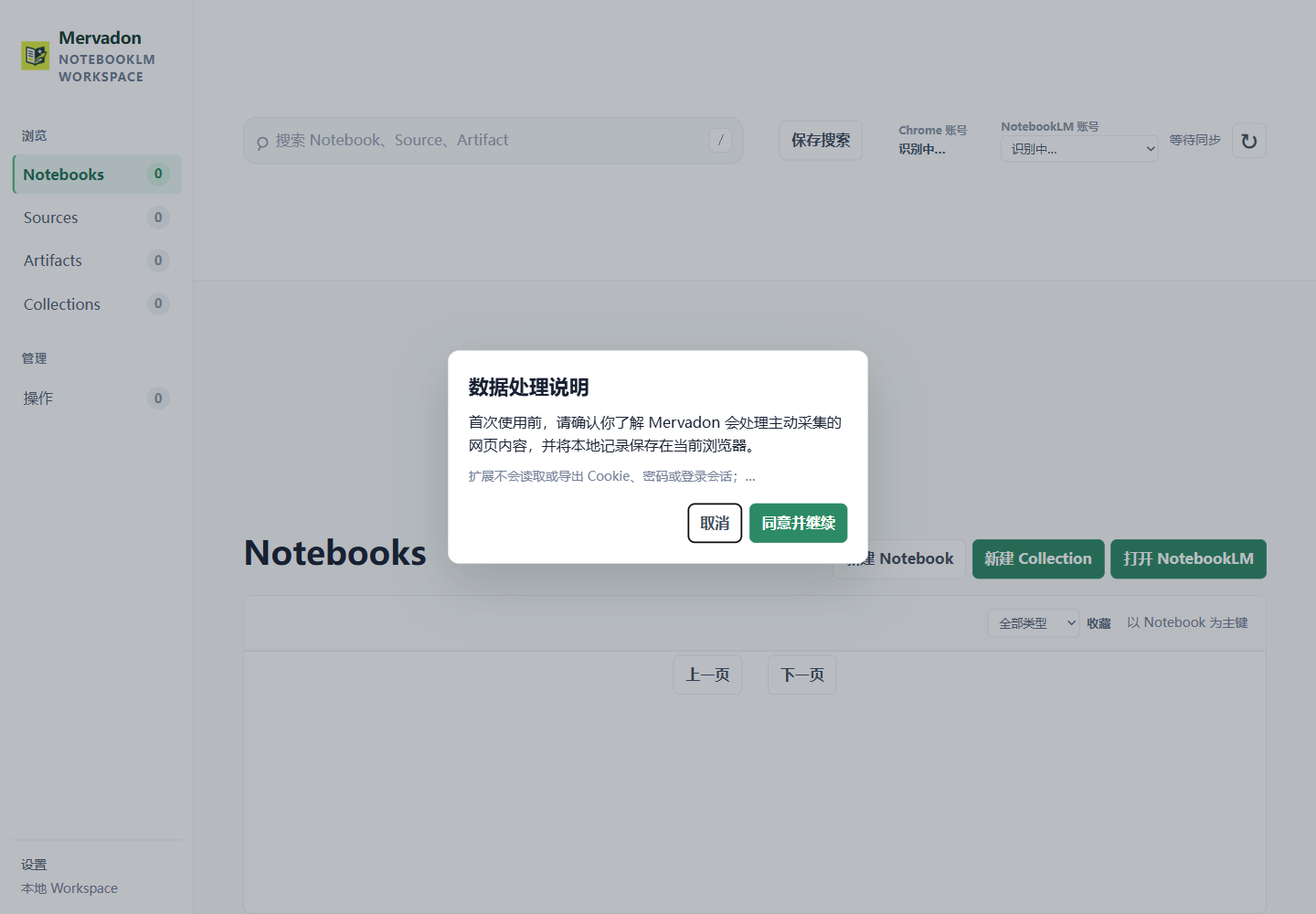
Select the Mervadon extension icon and open Workspace. The Workspace stores local records in the current browser by default; it does not require a Mervadon cloud account.
Step 3: Review page access
When you intentionally capture a page, Chrome may ask Mervadon for access to that page. Approve access only when you intend to capture it. Mervadon does not read browser passwords or export cookies and authentication tokens.
Expected result
You can open Workspace, see its local source controls, and start with the webpage capture guide.
If it does not work
Confirm that the extension is enabled, reload the active tab, and try the action again. If the page is still unavailable, continue with the troubleshooting guide.
Keep the next useful source.
Capture and organize the research that should stay connected to the final NotebookLM artifact.